

- Connect your agent to Quraite.
- Run your first evaluation.
- Inspect turn-level failures in the results.
Outcome: Your first confidence signal.
1. Create Your Agent
1
Create virtual environment
Inside a new folder, run the following commands:uv:poetry:default venv:
Update requires-python in
pyproject.toml to >=3.10,<=3.14.0 if it was auto-generated by Poetry.
This is done to avoid any compatibility issues with the dependencies.2
Install dependencies
Install Quraite SDK and agent dependencies.uv (recommended):poetry:pip:
3
Set up environment variables
This example uses Gemini. Set the
GOOGLE_API_KEY environment variable using a .env file.Create one if you don’t have one from the Google AI Studio API Keys.
4
Build your agent
This example uses a simple calculator agent using Langchain.Create a new file called
agent.py and paste the code below into the file.2. Run Your Agent
Run and expose your local agent to the internet using a tunnel so the Quraite platform can invoke it. This example uses Cloudflare Tunnel. Other options like ngrok are also supported.Cloudflare binaries are automatically downloaded and installed when you run the server. No need to install them manually.
1
Set up local server
At the bottom of
agent.py, add:2
Activate virtual environment
3
Run the server
4
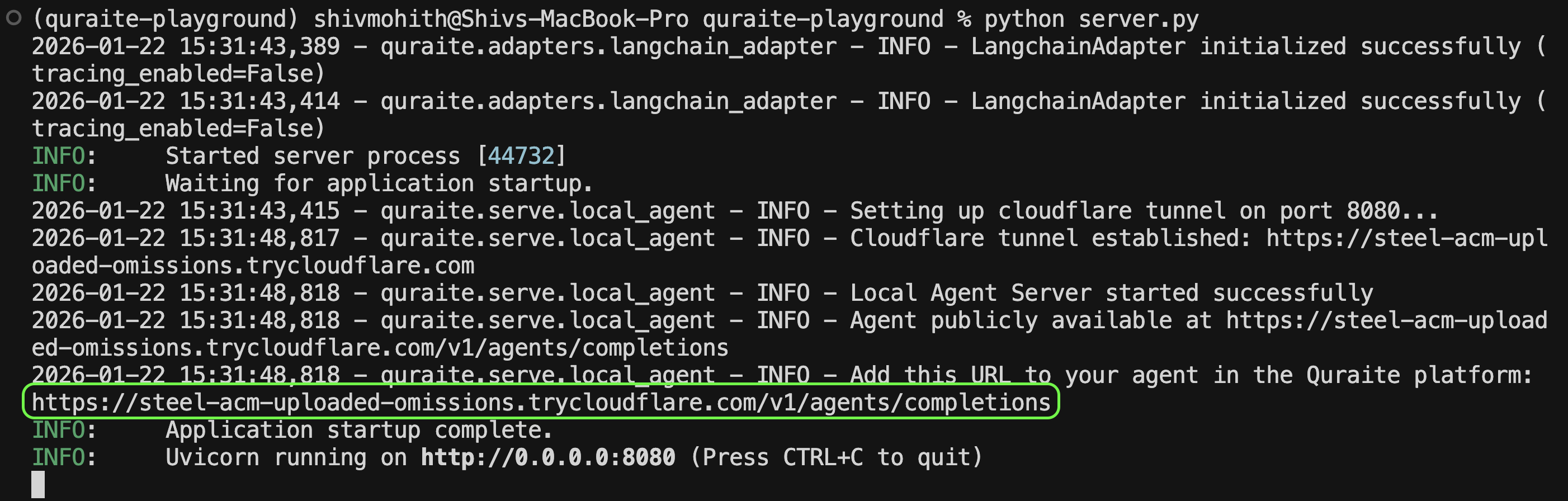
Copy the Cloudflare tunnel URL
3. Create a New Project
Go to the Quraite platform and sign in/sign up. Quraite creates a Default Project on signup. For this guide, create a new project.1
Create project
Click + New Project
2
Enter project details
- Project Name (e.g.
Calculator) - Description (Optional)
4. Register the Agent
1
Create agent
Click + New Agent and enter the following details:
- Agent Name -
Calculator Agent (Local) - Description (Optional)
- Agent URL - Paste the Cloudflare tunnel URL copied from the terminal (e.g.
https://steel-acm-uploaded-omissions.trycloudflare.com/v1/agents/completions)
5. Configure Model Providers (BYOK)
1
Create Provider Credential
Navigate to Settings on the left sidebar and click + New Provider Credential.Enter the following details:
- Name -
Google - Provider - Select
Google - API Key - Paste your Google API key (Create one if you don’t have one from the Google AI Studio API Keys)
- Model - Select
gemini-2.5-flash
2
Configure User Simulation Model
Select provider (
Google) and model (gemini-2.5-flash) to be used for User Simulation.3
Configure Agent Judge Model
Select provider (
Google) and model (gemini-2.5-flash) to be used for Agent Judge.Click Save.6. Create and Run a Test Case
This example uses a scenario-based test case.1
Create a Scenario-Based Dataset
Navigate to Datasets and click + New Dataset.Enter the following details:
- Dataset Type - Select
Scenario - Dataset Name -
Calculator Scenario Dataset - Description (Optional)
2
Create a Test Case
Click + First Test Case.Enter the following details:
- Test Case Name -
Calculate bill - Scenario - Enter the following scenario:
- User ate at a restaurant for a bill of $1250 and wants to calculate the amount after 20% discount in the first turn and then, wants to add 5% tax on it.
- Expected Behaviour - Enter the following expected behaviour as 2 distinct steps:
-
- Agent responds with $1000 after discount
-
- Agent responds with $1050 after tax
3
Run Test Case
- Choose the Agent that was previously created.
- Click Run.
- Observe user simulation, agent invocation, and behavior evaluation.
7. Next Steps
- Save the test case for future runs.
- Curate more edge-case scenarios.